Creating a PPPoE connection in Windows
This is for troubleshooting purposes only and should only be done by request of the Support Team. The PPPoE connection should be disabled or deleted at the end of the troubleshooting process.
Sometimes, in order to troubleshoot an FTTP connection we may need to use a direct connection from a laptop.
This is to make sure that any other devices are not the cause of the issue.
Remove the ethernet cable from the router and plug the ethernet cable from the ONT (Optical Network Terminal) into your laptop directly.
Then follow these instructions:
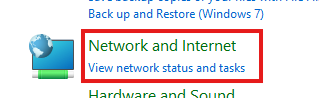
- Open the start menu and search for “Control Panel." Click to open Control panel.
- Go to Network and Internet->View network status and tasks page
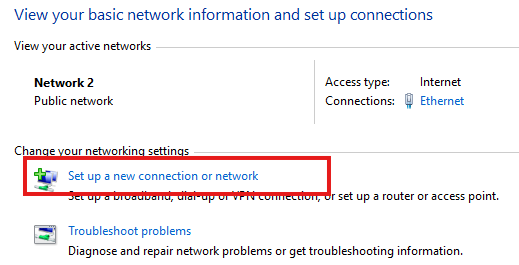
- Click on Set up a new connection or network.
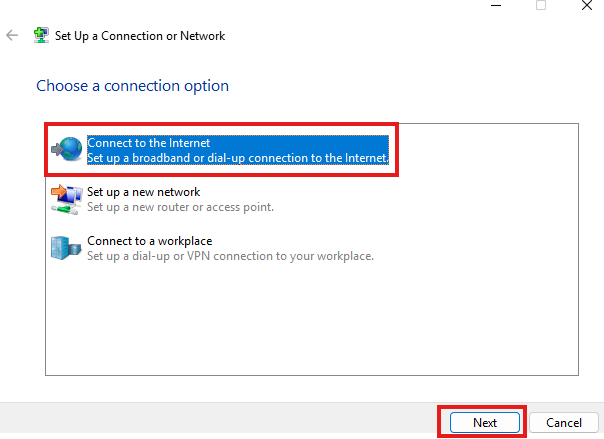
- Select Connect to the Internet and click Next button.
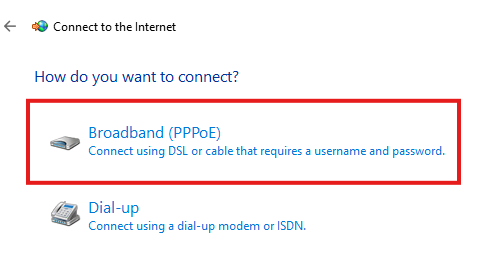
- Click on Broadband (PPPoE).
- Type in the username and password from your broadband credentials. Please make sure this information is correct.
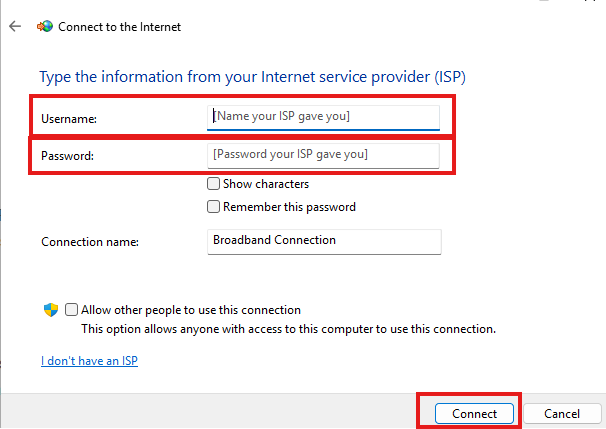
Click the Connect button. If all your information is correct, you should be able to browse the Internet
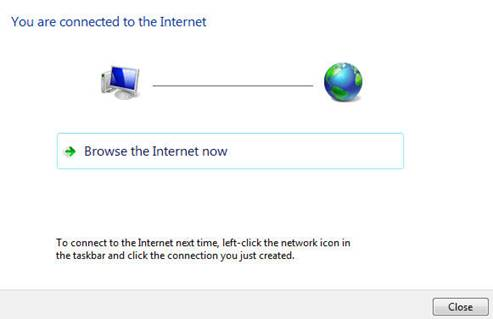
You have created a PPPoE connection successfully.
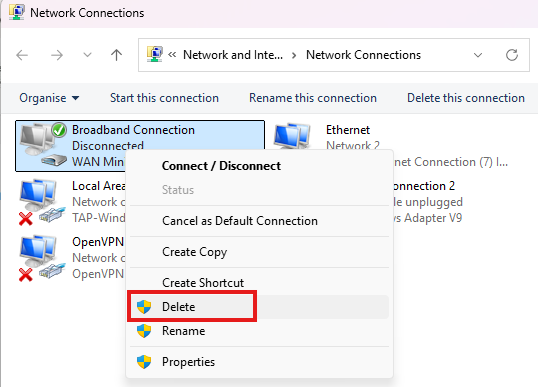
After the troubleshooting is completed, delete the PPPoE connection.
Open Control Panel > Network and Internet > Network Connections, right click the connection and select Delete.