
Christmas Time of Day Routing (TODR) 2025-2026
Public Holidays UK 2025/26 holiday period
How to set up TODR when your office is closed on all public holidays
How to set up TODR when your office is closed 20th December and reopens 2nd January
How to back up a dial plan, add a seasonal audio file and route unanswered calls to voicemail
How to restore a dial plan from your backup in January
Public Holidays UK 2025/26 holiday period
The following dates are public holidays in the United Kingdom during the 2025/2026 holiday period. Three apply to England, Northern Ireland, and Wales, and one applies to Scotland.
Thursday, 25th December 2025 (All United Kingdom countries)
Friday, 26th December 2025 (All United Kingdom countries)
Thursday, 1st January 2026 (All United Kingdom countries)
Friday, 2nd January 2026 (Scotland only)
How to set up TODR when your office is closed on all public holidays
In this example, the customer already has TODR enabled with working hours. Their working hours are Monday through Friday, 9:00 AM to 5:00 PM. You can use this guide to create that rule.
This example will create two rules:
- Go to Out of Office dial plan on 25th and 26th December
- Go to Out of Office dial plan on 1st January.
For the 25th and 26th December rule, select Incoming calls > Time of day routing > Active, then click 'Add To'.

Next, using the time and date picker, select the following:
Start/End Time: Any Time
Days of the Week: N/A
Days of the Month: 25,26
Months of the Year: Dec
Order Position: 1
Calls In Time Range Go To: Out of Office Hours

Click Submit, and a confirmation message appears confirming your selection:

For the January rule(s), click 'Add Another Rule'.
Next, using the time and date picker, select the following if your business is in England, Northern Ireland or Wales:
Start/End Time: Any Time
Days of the Week: N/A
Days of the Month: 1
Months of the Year: Jan
Order Position: 1
Calls In Time Range Go To: Out of Office Hours

Or, if your business is in Scotland, select the following:
Start/End Time: Any Time
Days of the Week: N/A
Days of the Month: 1, 2
Months of the Year: Jan
Order Position: 1
Calls In Time Range Go To: Out of Office Hours
Click Submit, and a confirmation message appears confirming your selection:

Select the View Time of Day routing rules to review all your rules.

How to set up TODR when your office is closed 20th December and reopens 2nd January
In this example, the customer already has TODR enabled with working hours. Their working hours are Monday through Friday, 9:00 AM to 5:00 PM. You can use this guide to create that rule.
This example will create two rules:
- Go to Out of Office dial plan 20th December through 31st December
- Go to Out of Office dial plan 1st January
For December's rule, select Incoming calls > Time of day routing > Active, then click 'Add To'.
Next, using the time and date picker, select the following:
Start/End Time: Any Time
Days of the Week: N/A
Days of the Month: 20, 21, 22, 23, 24, 25, 26, 27, 28, 29, 30, 31
Months of the Year: Dec
Order Position: 1
Calls In Time Range Go To: Out of Office Hours
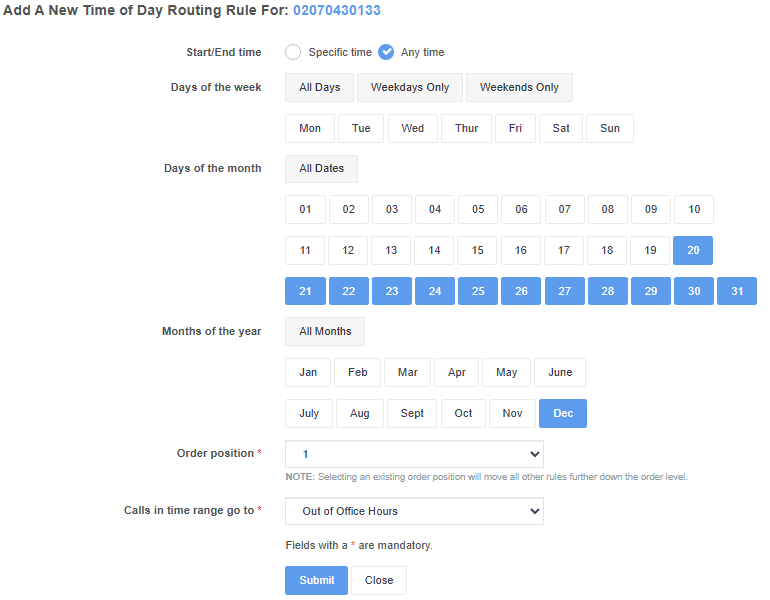
Click Submit, and a confirmation message appears confirming your selection:
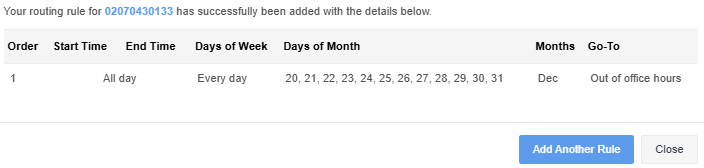
Select Add another routing rule to add the January rule. Using the time and date picker, select the following:
Start/End Time: Any Time
Days of the Week: N/A
Days of the Month: 1
Months of the Year: Jan
Order Position: 1
Calls In Time Range Go To: Out of Office Hours
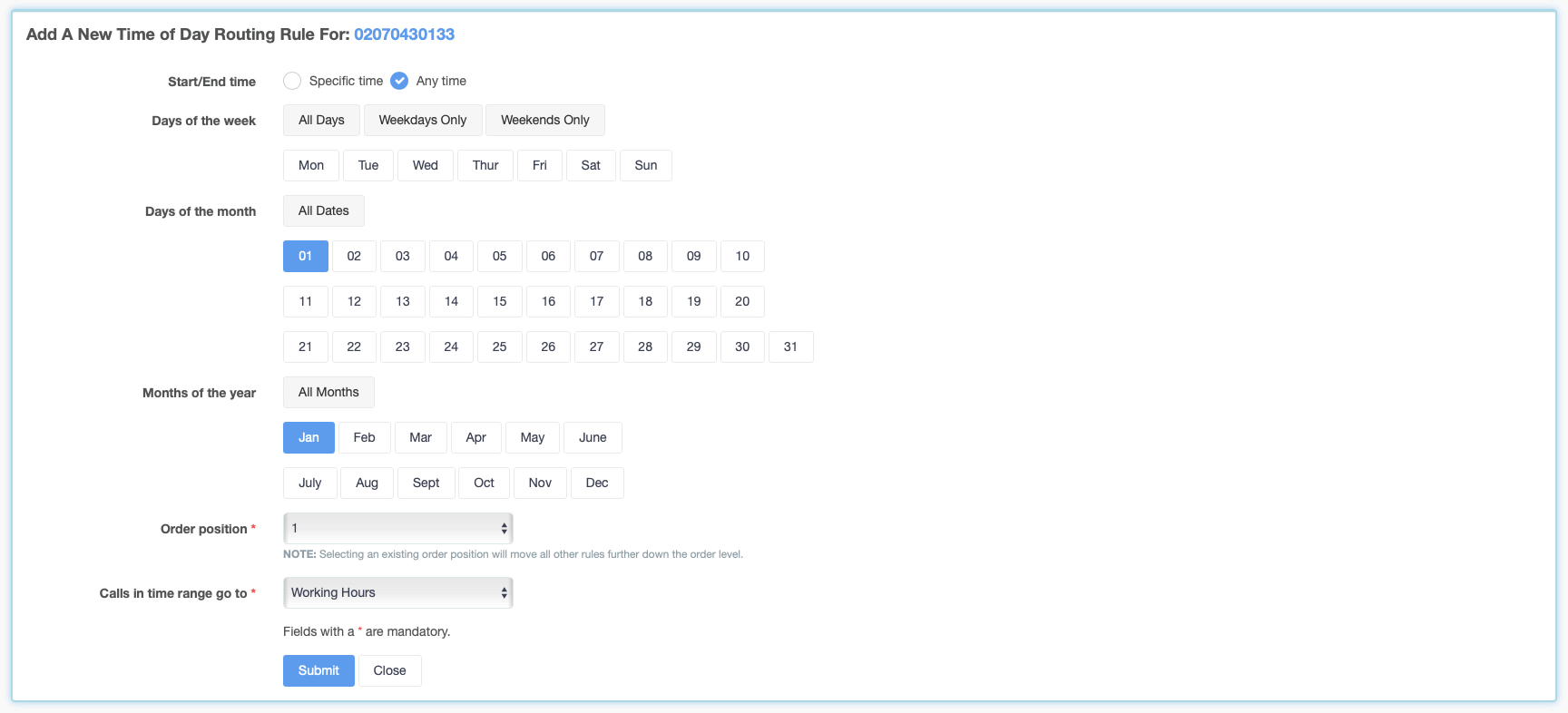
Select submit, and a confirmation screen will be displayed. Select close.
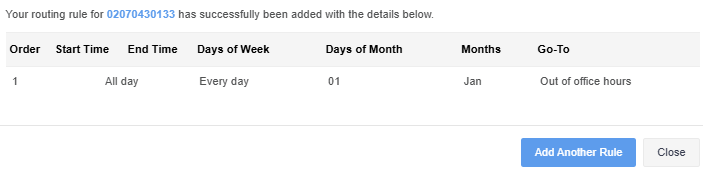
Select the View Time of Day routing rules to review all your rules.

Not using TODR
How to back up a dial plan, add a seasonal audio file and route unanswered calls to voicemail
This guide assumes you already have a seasonal audio file recorded and uploaded to your account and a voicemail box. For more information on how to add audio files and voicemail boxes, read the help articles:
If you do not use TODR and you're closing for the holidays, you can easily back up your existing dial plan and replace it with a seasonal audio file and voicemail. When you return to the office, please restore the dial plan using the backup.
- Go to Incoming Calls and select 'Backup/Restore'

- Select Backup, give your dial plan backup an identifiable name, and submit

- Click 'Add To' and complete the form as follows:
- Add To - Main Dial Plan
- Priority Order - 4
- Feature - Background
- Sound File - Your seasonal greeting
- Submit

- Complete the 'Add To' form again, this time to add the Voicemail step
- Add To - Main Dial Plan
- Priority Order - 5
- Feature - Voicemail
- Sound File - Your voicemail box
- Play Unanswered Message - No
- Suppress Default Message - Yes
- Submit

Callers will now hear the seasonal greeting and can leave a voicemail before the call ends.
When you are back in the office, restore your dial plan using the backup you took in step one:
- Go to Incoming Calls and select 'Backup/Restore'
- Select Restore, select your backup and submit

How to restore a dial plan from your backup in January
Click Incoming Calls
Find the dial plan and click Backup / Restore

Select Restore
Using the drop-down menu, select the dial plan you wish to restore

Check the Dial Plan Details, ensure it is the correct backup, and click submit.